1️⃣ Upload & Edit in Canva
Upload the template PDF to Canva. Use drag-and-drop tools to change images, colours, and branding easily. Watch a quick tutorial video if needed.
2️⃣ Rewrite with ChatGPT
You can update manually or speed things up with Chat GPT (or your favourite AI tool). Use this exact prompt when you’re ready and upload the quote pfd so it has a reference for what you’re asking it to amend :
“Hi ChatGPT,
I’m updating my Kwick Quote PDF for my business — the template is attached.
Please rewrite the text in my PDF so it relates to my company’s core benefits, style, tone, and messaging.
Here’s my website for you to use as a reference: https://www.southwaleswindowsanddoors.co.uk/
Keep all the same headings, content sections, and structure — just rewrite the copy to make it fit my brand better.”
3️⃣ Upload Your Final PDF to QuickQuote
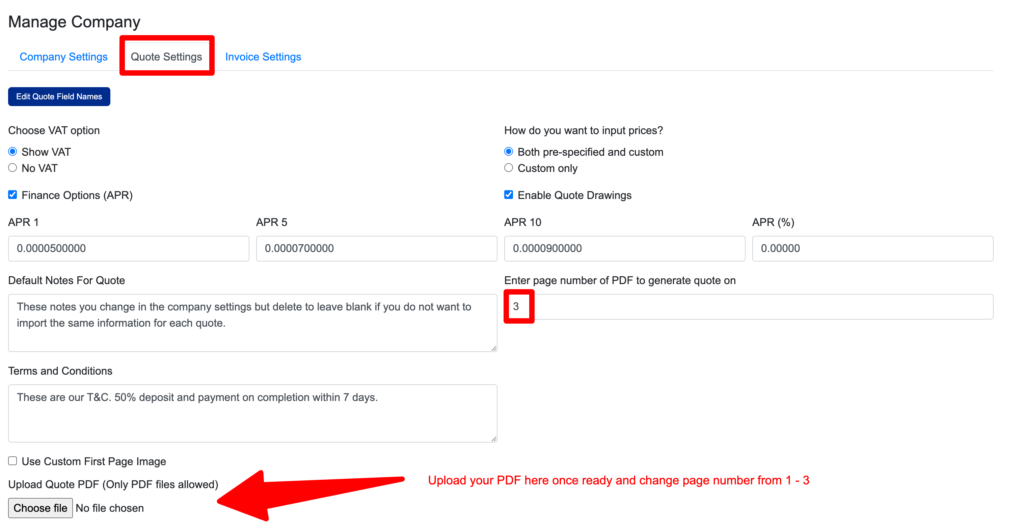
Once your new PDF is ready, upload it into your Kwick Quote software:
- Go to Business Settings
- Find the Quote Page settings
- Upload your updated PDF
- Make sure your Quote Page is set to 3
If you’d prefer help with this you can book in a call and we’ll help you get set up for a small one off fee. Learn more here.